> ## Documentation Index
> Fetch the complete documentation index at: https://braintrust.dev/docs/llms.txt
> Use this file to discover all available pages before exploring further.
# Score production traces
> Get continuous quality monitoring on every production request. Evaluations run asynchronously in the background without adding latency to your application.
Online scoring evaluates production traces automatically as they're logged, running evaluations asynchronously in the background to provide continuous quality monitoring without affecting your application's latency or performance.
Braintrust records each scorer run as a score span in the trace, so you can inspect the inputs, outputs, and metadata behind the score.
This enables you to:
* Monitor quality continuously across all production traffic
* Catch regressions immediately when they occur
* Evaluate at scale without manual intervention
* Get insights into real user interactions and edge cases
## Create scoring automation rules
Online scoring automation rules are defined at the project level and specify which functions run, which logs they evaluate, and how Braintrust writes the resulting scores.
In the Braintrust UI, there are various ways to create a scoring automation rule:
* **Project settings**: Go to ** Settings** > [** Automations**](https://www.braintrust.dev/app/~/configuration/automations) and click **+ Rule**.
See [Manage projects](/docs/admin/projects#set-up-online-scoring) for more details.
* **Scorer setup**: When creating or editing a scorer, click **Automations** and select an existing scoring automation rule or create a new one. This workflow allows you to configure both the scorer and its automation rules together.
See [Write scorers](/docs/evaluate/write-scorers) for more details.
* **Scorer testing**: When testing a scorer with logs in the **Run** section, filter logs to find relevant examples, then click **Automations** to create a new online scoring automation rule with filters automatically prepopulated from your current log filters. This enables rapid iteration from logs to scoring automation rules.
See [Test with logs](/docs/evaluate/write-scorers#test-with-logs) for more details.
* **Scorers list**: On the [** Scorers**](https://www.braintrust.dev/app/~/scorers) page, select one or more scorers and click **Create automation** to open the creation dialog with the selected scorers pre-filled.
See [Write scorers](/docs/evaluate/write-scorers) for more details.
Select **Test rule** to preview how your rule will perform before enabling it.
Create scorers using the SDK, then configure scoring automation rules in the UI or API:
1. [Write and push your scorer](/docs/evaluate/write-scorers) to Braintrust.
2. Configure your scoring automation rule:
* In the UI, go to ** Settings** > [** Automations**](https://www.braintrust.dev/app/~/configuration/automations), click **+ Rule**, select your scorer, and configure when it runs.
* Using the REST API, configure a scoring automation rule with [`POST /v1/project_score`](/docs/api-reference/projectscores/create-project_score). Replace `` with your project ID and `` with the ID of the scorer function to run.
```bash theme={"theme":{"light":"github-light","dark":"github-dark-dimmed"}}
curl https://api.braintrust.dev/v1/project_score \
-H "Authorization: Bearer $BRAINTRUST_API_KEY" \
-H "Content-Type: application/json" \
-d '{
"project_id": "",
"name": "Production scoring rule",
"description": "Score production traces",
"score_type": "online",
"config": {
"online": {
"sampling_rate": 1,
"scorers": [{ "type": "function", "id": "" }],
"apply_to_root_span": true
}
}
}'
```
Use the following endpoints:
* [`PUT /v1/project_score`](/docs/api-reference/projectscores/create-or-replace-project_score) to create or replace by name.
* [`PATCH /v1/project_score/{project_score_id}`](/docs/api-reference/projectscores/partially-update-project_score) to update by ID.
[`POST /v1/project_score`](/docs/api-reference/projectscores/create-project_score) returns the existing rule, unchanged, if a rule with that name already exists in the project.
### Configuration parameters
Scoring automation rules have common settings and settings specific to the selected scope (trace, span, or group).
First, configure the common settings:
| Field | Description |
| --------------- | -------------------------------------------------------------------------------------------------------------------------------------------------------------------------------- |
| **Rule name** | Unique identifier for the rule. |
| **Description** | Explanation of the rule's purpose. |
| **Project** | Project the rule belongs to. This field appears when you create a rule from a scorer or classifier page. |
| **Functions** | Scorers or classifiers the rule runs. [Autoevals](/docs/evaluate/autoevals) evaluate individual spans, so rules that run them need **Scope** set to ** Span**. |
Then choose a **Scope** and configure the remaining settings:
A trace-scoped rule runs scorers on one complete trace, including nested spans. Choose trace scope for an interaction captured in a single trace, such as a multi-step workflow.
When a trace-scoped rule scores a trace, the trace tree shows a span associated with the scoring automation. Scorer runs appear as score spans under that automation span.
| Field | Description |
| ------------------------------ | -------------------------------------------------------------------------------------------------------------------------------------------------------------------------------------------------------------------------------------------------------------------------------------------------------------------------------------------------------------------------------------------------------- |
| **Scope** | ** Trace**. |
| **Idle timeout (seconds)** | How long Braintrust waits after the most recent span before running the scorer on the trace.- Defaults to 30 seconds.
- Scores appear at least this long after the trace's last span is logged.
- Scorer-written spans do not restart the idle timer. If new application spans arrive after scoring, the idle timer restarts and the rule can score the updated trace again.
|
| **Filter** | Criteria that Braintrust uses to determine whether a trace should be scored.- A trace matches when any span in the trace satisfies the filter condition.
- SQL filters for online scoring do not support the `!=` operator. Use `IS NOT` instead.
|
| **Sampling rate** | Percentage of matching traces that Braintrust scores after the trace has gone idle. |
| **Advanced > Disable logging** | Whether the rule logs score spans on its target spans. Enable this setting to prevent the rule from logging score spans, even if other rules run on those spans. |
Scorers run by a trace-scoped automation rule can inspect the full trace in the following ways:
* In [LLM-as-a-judge](/docs/evaluate/llm-as-a-judge#score-traces) scorers, the prompt can reference thread variables populated from the trace, such as `{{thread}}`.
* [Custom code](/docs/evaluate/custom-code#score-traces) scorers receive the `trace` argument and can inspect spans with `trace.getSpans()` or the rendered conversation with `trace.getThread()`.
A span-scoped rule runs scorers on individual spans. Choose span scope when the thing you want to score is captured in a single span, such as an LLM response or tool call.
When a span-scoped rule scores a span, Braintrust logs the score in a new score span. The score span is a child of the span under consideration.
| Field | Description |
| ------------------------------ | -------------------------------------------------------------------------------------------------------------------------------------------------------------------------------------------------------------------------------------------------------------------------------------------------------------------------------- |
| **Scope** | ** Span**. |
| **Filter** | Which spans the rule considers for scoring.- **All root spans** scores top-level spans.
- **Span names** scores spans with specific names.
- **Advanced filter** scores spans that match a SQL filter clause. SQL filters for online scoring do not support the `!=` operator. Use `IS NOT` instead.
|
| **Sampling rate** | Percentage of matching spans the rule scores. |
| **Advanced > Disable logging** | Whether the rule logs score spans on its target spans. Enable this setting to prevent the rule from logging score spans, even if other rules run on those spans. |
Scorers run by a span-scoped automation rule can inspect the matched span in the following ways:
* In [LLM-as-a-judge](/docs/evaluate/llm-as-a-judge#score-spans) scorers, the prompt can reference template variables populated from the matched span, such as `{{input}}`, `{{output}}`, `{{expected}}`, and `{{metadata}}`.
* [Custom code](/docs/evaluate/custom-code#score-spans) scorers receive `input`, `output`, `expected`, and `metadata` parameters.
A group-scoped rule runs scorers on a group of related traces. Choose group scope when the interaction you want to score is logged across multiple traces, such as a session where each LLM call is logged as its own trace.
When a group-scoped rule scores a group of related traces, the trace that receives the score shows a span associated with the scoring automation. Scorer runs appear as score spans under that automation span.
For [self-hosted deployments](/docs/admin/self-hosting), group scope requires data plane v2.8.0 or later. You can also group traces into conversations for [Topics](/docs/observe/topics/manage#group-traces-into-conversations), which classifies each group rather than scoring it.
| Field | Description |
| ------------------------------ | ------------------------------------------------------------------------------------------------------------------------------------------------------------------------------------------------------------------------------------------------------------------------------------------------------------------------------------------------------------------------------------------------------------------------------------------------------------------------------------------------------------------------------------------------------------------------------------------------------------------------------------------------------------------------------------------------------------------------------------------------------------------------------------------------------------------------------------------------------------------------------------------------------------------------------------------------------- |
| **Scope** | ** Group**. |
| **Idle timeout (seconds)** | How long Braintrust waits after the most recent matching trace before running the scorer on the group. Grouped scoring does not have a separate conversation-ended signal, so use the idle timeout to approximate when the interaction is ready to score. |
| **Group by** | Field path that identifies which traces belong together. For example, `metadata.session_id`.- You do not need to change how you log. Keep logging each turn as its own trace, and make sure each trace carries the same grouping key.
- The key must be a subfield of `metadata` or `span_attributes`, and it must resolve to a single value, not an object or array.
- Braintrust excludes a trace from grouped scoring when:
- None of its spans include the **Group by** key.
- The **Group by** key resolves to an object or array.
- Different spans in the trace set the **Group by** key to different values.
|
| **Apply to** | Which trace in the group receives the score.- **Every trace in the group** places a score on each matching trace, based on the conversation history available at that point.
- Each trace's score is based on that trace and earlier traces in the same group, as far back as allowed by **Group interval** and **Maximum traces**.
- Later traces in the same group receive their own scores. They do not update scores on earlier traces.
- **First trace in the group** places the score on the earliest trace included in the group when the scorer runs. Choose this when you want a rolling score for the session.
- Scores are always added to the same trace, under a span associated with the scoring automation, until that trace no longer fits within **Group interval** or **Maximum traces**.
- At that point, subsequent scores are added to a newer trace in the group.
|
| **Group interval** | Maximum time range a single group can cover (default: 24 hours). This bounds how much history one group accumulates. Use a duration like `7d`, `6h`, `30m`, or `86400s`. Braintrust excludes older turns outside the interval.- **Group interval** is not a scoring schedule.
|
| **Maximum traces** | Number of traces per group to include in scoring.- Defaults to 64, which is also the maximum.
- Braintrust truncates groups longer than 64 traces to the most recent 64.
|
| **Filter** | Criteria that Braintrust uses to determine whether an incoming trace should trigger grouped scoring (not whether the trace is a member of the group, which is determined by the **Group by** key, **Group interval**, and **Maximum traces**).- Traces that do not match the filter can still be included as context when a later trace triggers grouped scoring.
- SQL filters for online scoring do not support the `!=` operator. Use `IS NOT` instead.
|
| **Sampling rate** | Percentage of matching traces that can trigger grouped scoring.- When a group goes idle after the arrival of a trace that matches the filter, Braintrust decides based on the sampling rate whether or not to run the scorer on the group.
- The sampling rate does not determine *which* traces in the group to include when running the scorer, only *whether* the most recent matching trace should trigger grouped scoring.
|
| **Advanced > Disable logging** | Whether the rule logs score spans on its target spans. Enable this setting to prevent the rule from logging score spans, even if other rules run on those spans. |
Scorers run by a group-scoped automation rule can inspect the traces included in the group when the scorer runs:
* In [LLM-as-a-judge](/docs/evaluate/llm-as-a-judge#score-traces) scorers, the prompt can reference `{{thread}}` to inspect the conversation across the grouped traces.
* [Custom code](/docs/evaluate/custom-code#score-traces) scorers receive the `trace` argument, backed by the traces included in the group when the scorer runs. `trace.getSpans()` returns a flat list of spans from the grouped traces, and `trace.getThread()` returns their conversation history.
If you only want to score groups after they reach a minimum size, add that check to the scorer. For example, a custom code scorer can count the included root span IDs or traces and return `null` when the group is too small.
## Use scorers from another project
Scoring rules can run scorers and classifiers defined in other projects, so you can maintain a shared library of scorers in a central project and apply it across your organization.
To make another project's scorers available in the scorer dropdown:
1. Grant the user or service token read access to the project where the scorers are defined, through a [permission group](/docs/admin/access-control/manage-permissions#create-custom-permission-groups). Organization-wide read access is not required. For least-privilege access, scope the group to read only that project's prompts, where scorers are stored. See [custom permission groups](/docs/admin/access-control#when-to-use-custom-permission-groups).
2. In the scorer dropdown, select the scorer under the **Other projects** group. The same grouping and project-level read requirement apply in the playground.
Read access lets you select a cross-project scorer. Running it is separate: the automation's service token or API key must also have read access to the logs it scores, which can be in a different project. See [Missing scores](#missing-scores) if a cross-project rule does not produce results.
## View scoring results
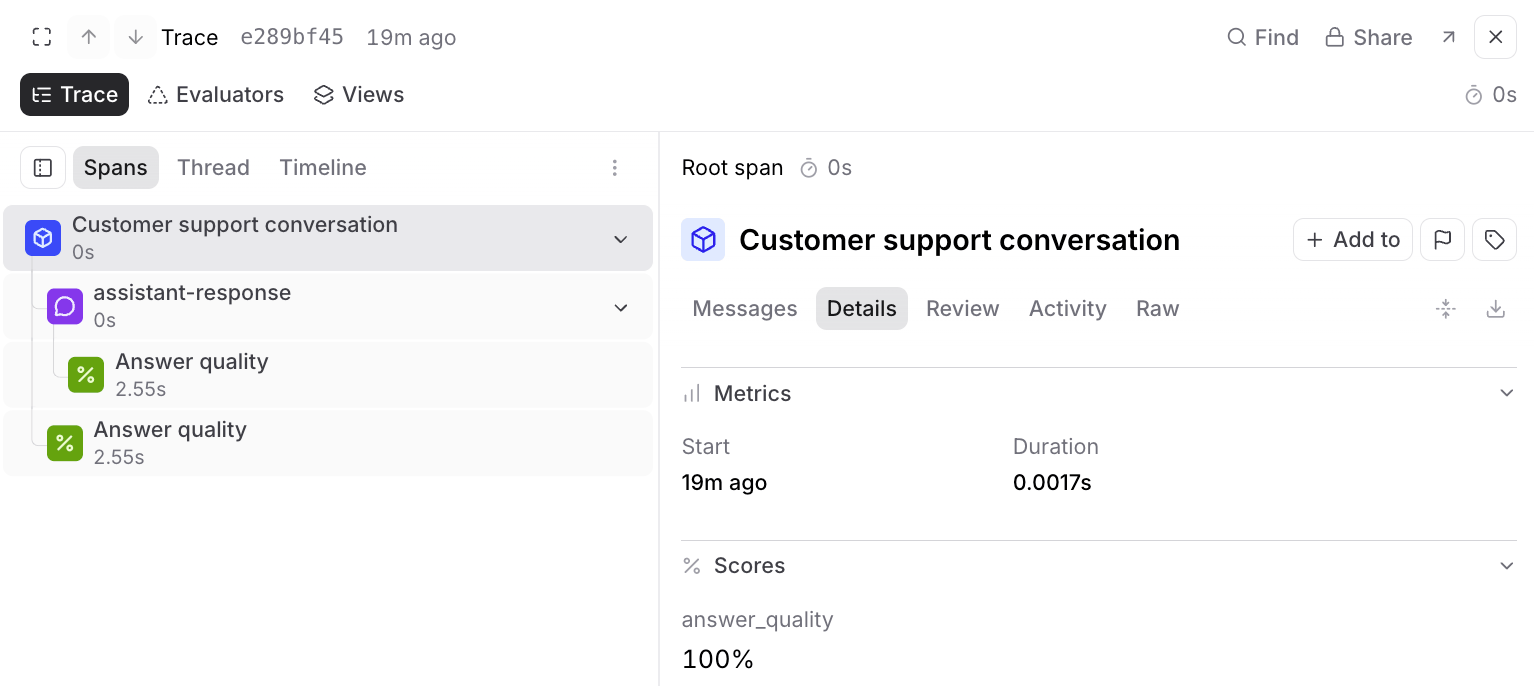
Scores appear automatically in your logs. The trace tree shows the score value, the function that generated it, and a score span with the scorer output and metadata.
For span-scoped rules, Braintrust adds the score span as a child of the matched span. For trace- and group-scoped rules, Braintrust adds a scoring automation span to the trace, with score spans underneath it.
 ## Inspect grouped score metadata
To see which traces a grouped score used, inspect the scoring automation span's `metadata.grouped_scoring` object:
* `context_root_span_ids` lists the traces included as context.
* `triggering_root_span_id` identifies the trace whose arrival triggered grouped scoring.
* `target_root_span_id` identifies the trace that received the score.
To read the grouped conversation in the UI, [group related traces](/docs/observe/view-logs#group-related-traces) by the same key and open **Thread** view.
## Score manually
To apply scorers to historical logs:
* **Specific logs**: Select logs and use **Score** to apply chosen scorers
* **Individual logs**: Open any log and use **Score** in the trace view
* **Filtered logs**: Filter logs to narrow your view, then use **Score existing logs** under **Automations** to apply scorers to recent logs matching your filters
## Rewind an automation
If you need to re-score traces from a specific point in time, you can rewind an online scoring automation. This is useful if you've updated a scorer and want to re-evaluate recent traces with the new version, or if you need to fix scoring that was paused or errored.
Only trace-scoped and group-scoped automations can be rewound, not span-scoped ones. Rewinding requires data plane v2.3.0 or later, and group scope itself requires data plane v2.8.0 or later.
To rewind an automation:
1. Go to ** Settings** > [** Automations**](https://www.braintrust.dev/app/~/configuration/automations).
2. Click to edit the automation.
3. Under **Processing status**, click **Rewind...**.
4. Select the timestamp to rewind to using the datetime input.
5. Click **Reset** to begin re-processing traces from that point forward.
The automation re-evaluates traces logged after your selected timestamp that match its current rule, including its SQL filter, span targeting, and sampling rate. Traces that don't match, or that are sampled out, aren't rescored. You can view the progress in the **Processing status** panel, which shows how many traces have been processed and any errors that occurred.
## Best practices
**Choose sampling rates wisely**: High-volume applications should use lower rates (1-10%) to manage costs. Low-volume or critical applications can use higher rates (50-100%) for comprehensive coverage.
**Complement offline evaluation**: Use online scoring to validate experiment results in production, monitor deployed changes, and identify new test cases from real interactions.
**Consider scorer costs**: [LLM-as-a-judge](/docs/evaluate/llm-as-a-judge) scorers have higher latency and costs than code-based alternatives. Factor this into your sampling rate decisions.
**Choose the right scope**: Use span scope for evaluating individual operations or outputs. Use trace scope when your scorer needs the full execution context of one trace, such as overall workflow completion. Use [group scope](#configuration-parameters) when the interaction you want to evaluate spans several traces, such as a session or multi-turn conversation.
## Retries and failure handling
Online scoring includes automatic retry behavior so transient failures don't cause silent gaps in your scores:
For [self-hosted deployments](/docs/admin/self-hosting), per-scorer retries and partial-failure handling require data plane v2.4.0 or later, and batch-level retries require data plane v2.5.0 or later.
* **Batch-level retries**: Braintrust retries scoring batches on transient HTTP failures with exponential backoff.
* **Per-scorer retries**: If a single scorer function fails on a batch, Braintrust retries that scorer independently. Other scorers in the same rule are unaffected.
* **Partial-failure handling**: Batches containing a mix of successful and failing rows still record scores for the rows that succeed.
* **Repeated score spans**: Each retry attempt appears as a separate score span on the trace, so repeated spans with the same error indicate the scorer is failing consistently rather than intermittently.
Some failures persist across every retry, such as a payload that exceeds a runtime limit or a model that is unavailable. Once the retry window is exhausted, Braintrust records the error on the score span and moves on, leaving the span unscored. To resolve these failures, inspect the error on the affected score spans and address the underlying cause. Common issues include:
* Payloads that exceed the scorer runtime's request-size limit. Reduce the size of the span fields the scorer receives (for example, truncate large inputs or outputs before logging), or use **Filter** to scope the scorer to a narrower span.
* Unavailable or misconfigured models. See [Automation scorer failures due to Gemini gateway routing errors](/docs/kb/automation-scorer-failures-due-to-gemini-gateway-routing-errors) for an example.
* Missing permissions on the API key or service token running the scorer.
## Troubleshoot issues
### Low or inconsistent scores
* Review scorer logic to ensure criteria match expectations.
* Verify scorers receive the expected data structure.
* Test scorer behavior on controlled inputs.
* Make LLM-as-a-judge criteria more specific.
### Missing scores
* Check span-scope **Filter** settings to ensure correct span types are targeted, such as root spans or specific span names.
* Verify logs pass the SQL filter clause. Confirm your logs' data (input, output, metadata) matches the filter criteria.
* Confirm sampling rate isn't too low for your traffic volume.
* For trace-scoped rules, confirm the trace has gone idle. A trace that keeps receiving spans is not scored until no new spans arrive for the configured **Idle timeout (seconds)**.
* Ensure API key or service token has proper permissions (Read and Update on project and project logs). If using scorers from other projects, ensure permissions on those projects as well.
* Verify span data is complete when `span.end()` is called:
* Online scoring triggers when `span.end()` is called (or automatically when using `wrapTraced()` in TypeScript or `@traced` decorator in Python)
* The SQL filter clause evaluates only the data present at the moment `span.end()` is called
* If a span is updated after calling `end()` (e.g., logging output after ending), the update won't be evaluated by the filter. For example, if your filter requires `output IS NOT NULL` but output is logged after `span.end()`, the span won't be scored
### Missing grouped scores
If grouped scores are not landing on your traces as expected, check the following:
* **Confirm the rule was in place before the activity you expect it to score.** Braintrust does not backfill group scores when you create a rule. However, if a group receives a new matching trace after you create the rule, that trace can trigger grouped scoring, with earlier traces in the group included as context according to **Group interval** and **Maximum traces**. To backfill group scores, [rewind the automation](#rewind-an-automation).
* **Check where grouped scores land.** With **Every trace in the group**, Braintrust scores the matching trace that triggered the run, using earlier traces in the group as context. With **First trace in the group**, Braintrust writes the score to the earliest trace still included in the group.
* **Check that the filter can match the group's last trace.** Under **First trace in the group**, a rule whose filter excludes the trace that ends the conversation does not run. Either switch to **Every trace in the group**, or write the filter so the final trace can match.
* **Treat the filter as a trigger condition, not a membership condition.** A matching trace can trigger scoring, but the scorer still receives every trace that shares the grouping key within the group's window.
* **Confirm every turn carries the grouping key.** A trace is left out of the group when the key is missing, when its value is an object or an array, or when spans within that trace disagree about its value.
* **Expect fewer scored traces than traces.** Under **First trace in the group**, one trace per group carries a score, not one per turn.
## Next steps
* [Create dashboards](/docs/observe/dashboards) to monitor score trends
* [Build datasets](/docs/annotate/datasets/create#promote-traces-from-logs) from scored production traces
* [Run experiments](/docs/evaluate/run-evaluations) to validate scoring criteria
* Learn about [creating scorers](/docs/evaluate/write-scorers)
## Inspect grouped score metadata
To see which traces a grouped score used, inspect the scoring automation span's `metadata.grouped_scoring` object:
* `context_root_span_ids` lists the traces included as context.
* `triggering_root_span_id` identifies the trace whose arrival triggered grouped scoring.
* `target_root_span_id` identifies the trace that received the score.
To read the grouped conversation in the UI, [group related traces](/docs/observe/view-logs#group-related-traces) by the same key and open **Thread** view.
## Score manually
To apply scorers to historical logs:
* **Specific logs**: Select logs and use **Score** to apply chosen scorers
* **Individual logs**: Open any log and use **Score** in the trace view
* **Filtered logs**: Filter logs to narrow your view, then use **Score existing logs** under **Automations** to apply scorers to recent logs matching your filters
## Rewind an automation
If you need to re-score traces from a specific point in time, you can rewind an online scoring automation. This is useful if you've updated a scorer and want to re-evaluate recent traces with the new version, or if you need to fix scoring that was paused or errored.
Only trace-scoped and group-scoped automations can be rewound, not span-scoped ones. Rewinding requires data plane v2.3.0 or later, and group scope itself requires data plane v2.8.0 or later.
To rewind an automation:
1. Go to ** Settings** > [** Automations**](https://www.braintrust.dev/app/~/configuration/automations).
2. Click to edit the automation.
3. Under **Processing status**, click **Rewind...**.
4. Select the timestamp to rewind to using the datetime input.
5. Click **Reset** to begin re-processing traces from that point forward.
The automation re-evaluates traces logged after your selected timestamp that match its current rule, including its SQL filter, span targeting, and sampling rate. Traces that don't match, or that are sampled out, aren't rescored. You can view the progress in the **Processing status** panel, which shows how many traces have been processed and any errors that occurred.
## Best practices
**Choose sampling rates wisely**: High-volume applications should use lower rates (1-10%) to manage costs. Low-volume or critical applications can use higher rates (50-100%) for comprehensive coverage.
**Complement offline evaluation**: Use online scoring to validate experiment results in production, monitor deployed changes, and identify new test cases from real interactions.
**Consider scorer costs**: [LLM-as-a-judge](/docs/evaluate/llm-as-a-judge) scorers have higher latency and costs than code-based alternatives. Factor this into your sampling rate decisions.
**Choose the right scope**: Use span scope for evaluating individual operations or outputs. Use trace scope when your scorer needs the full execution context of one trace, such as overall workflow completion. Use [group scope](#configuration-parameters) when the interaction you want to evaluate spans several traces, such as a session or multi-turn conversation.
## Retries and failure handling
Online scoring includes automatic retry behavior so transient failures don't cause silent gaps in your scores:
For [self-hosted deployments](/docs/admin/self-hosting), per-scorer retries and partial-failure handling require data plane v2.4.0 or later, and batch-level retries require data plane v2.5.0 or later.
* **Batch-level retries**: Braintrust retries scoring batches on transient HTTP failures with exponential backoff.
* **Per-scorer retries**: If a single scorer function fails on a batch, Braintrust retries that scorer independently. Other scorers in the same rule are unaffected.
* **Partial-failure handling**: Batches containing a mix of successful and failing rows still record scores for the rows that succeed.
* **Repeated score spans**: Each retry attempt appears as a separate score span on the trace, so repeated spans with the same error indicate the scorer is failing consistently rather than intermittently.
Some failures persist across every retry, such as a payload that exceeds a runtime limit or a model that is unavailable. Once the retry window is exhausted, Braintrust records the error on the score span and moves on, leaving the span unscored. To resolve these failures, inspect the error on the affected score spans and address the underlying cause. Common issues include:
* Payloads that exceed the scorer runtime's request-size limit. Reduce the size of the span fields the scorer receives (for example, truncate large inputs or outputs before logging), or use **Filter** to scope the scorer to a narrower span.
* Unavailable or misconfigured models. See [Automation scorer failures due to Gemini gateway routing errors](/docs/kb/automation-scorer-failures-due-to-gemini-gateway-routing-errors) for an example.
* Missing permissions on the API key or service token running the scorer.
## Troubleshoot issues
### Low or inconsistent scores
* Review scorer logic to ensure criteria match expectations.
* Verify scorers receive the expected data structure.
* Test scorer behavior on controlled inputs.
* Make LLM-as-a-judge criteria more specific.
### Missing scores
* Check span-scope **Filter** settings to ensure correct span types are targeted, such as root spans or specific span names.
* Verify logs pass the SQL filter clause. Confirm your logs' data (input, output, metadata) matches the filter criteria.
* Confirm sampling rate isn't too low for your traffic volume.
* For trace-scoped rules, confirm the trace has gone idle. A trace that keeps receiving spans is not scored until no new spans arrive for the configured **Idle timeout (seconds)**.
* Ensure API key or service token has proper permissions (Read and Update on project and project logs). If using scorers from other projects, ensure permissions on those projects as well.
* Verify span data is complete when `span.end()` is called:
* Online scoring triggers when `span.end()` is called (or automatically when using `wrapTraced()` in TypeScript or `@traced` decorator in Python)
* The SQL filter clause evaluates only the data present at the moment `span.end()` is called
* If a span is updated after calling `end()` (e.g., logging output after ending), the update won't be evaluated by the filter. For example, if your filter requires `output IS NOT NULL` but output is logged after `span.end()`, the span won't be scored
### Missing grouped scores
If grouped scores are not landing on your traces as expected, check the following:
* **Confirm the rule was in place before the activity you expect it to score.** Braintrust does not backfill group scores when you create a rule. However, if a group receives a new matching trace after you create the rule, that trace can trigger grouped scoring, with earlier traces in the group included as context according to **Group interval** and **Maximum traces**. To backfill group scores, [rewind the automation](#rewind-an-automation).
* **Check where grouped scores land.** With **Every trace in the group**, Braintrust scores the matching trace that triggered the run, using earlier traces in the group as context. With **First trace in the group**, Braintrust writes the score to the earliest trace still included in the group.
* **Check that the filter can match the group's last trace.** Under **First trace in the group**, a rule whose filter excludes the trace that ends the conversation does not run. Either switch to **Every trace in the group**, or write the filter so the final trace can match.
* **Treat the filter as a trigger condition, not a membership condition.** A matching trace can trigger scoring, but the scorer still receives every trace that shares the grouping key within the group's window.
* **Confirm every turn carries the grouping key.** A trace is left out of the group when the key is missing, when its value is an object or an array, or when spans within that trace disagree about its value.
* **Expect fewer scored traces than traces.** Under **First trace in the group**, one trace per group carries a score, not one per turn.
## Next steps
* [Create dashboards](/docs/observe/dashboards) to monitor score trends
* [Build datasets](/docs/annotate/datasets/create#promote-traces-from-logs) from scored production traces
* [Run experiments](/docs/evaluate/run-evaluations) to validate scoring criteria
* Learn about [creating scorers](/docs/evaluate/write-scorers)